
Want to bring your content into FFAIR rather than sending exhibitors elsewhere?
With iFrame embedding, you can insert any approved web page or web-based tool directly into a Task description or your Show Info page, so exhibitors can interact with your content in context.
View the iFrame set-up in action:
What is an iFrame?
An iFrame is a way of embedding a live webpage inside another page. When you add an iFrame to FFAIR, the content appears as an interactive panel — exhibitors can view and use it without opening a separate browser tab.
Where can iFrames be added?
iFrames can be embedded in two places:
- Task Descriptions — add interactive content directly to a task, so exhibitors engage with it while completing their checklist
- Show Info — embed content on your central show information page, visible to all exhibitors
In both locations, look for the iFrame button in the rich-text editor toolbar to get started.

Why use iFrames?
In Task Descriptions
- Embed a form (Typeform, JotForm, Google Forms) so exhibitors can submit information without leaving the task
- Add an instructional video (Vimeo, Loom) — ideal for build guides, safety briefings, or onboarding walkthroughs
- Embed a live document (Google Docs, Notion) containing specs or contractor briefs that you can update in one place
- Insert a booking or scheduling tool (Calendly) so exhibitors can book inductions or deliveries directly from a task
In Show Info
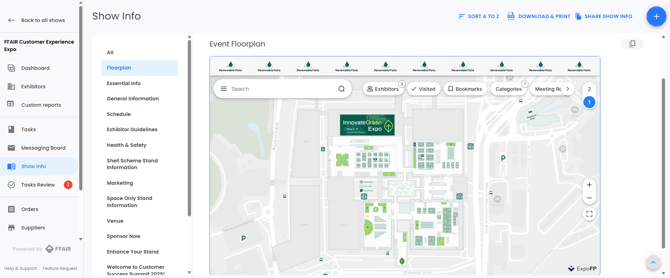
- Embed an interactive floorplan so exhibitors can locate their stand, check access routes, and explore the venue layout
- Add a live event programme or schedule that updates automatically as the show approaches
- Embed venue or destination information, hotel booking pages, or travel guides
- Display a live dashboard (Power BI, Tableau) with exhibitor data or visitor statistics
Domain verification
For the security of exhibitors, all domains used in iFrames must be reviewed and approved by the FFAIR team before the content becomes visible. This is a one-time process per domain — once approved, you can use any URL from that domain across all your shows without re-verifying.
How it works:
- Enter a URL in the iFrame dialogue. If the domain hasn't been approved yet, a Verify and Insert button will appear.
- Click Verify and Insert — this submits the domain for review and inserts the iFrame placeholder at the same time.
- The FFAIR team reviews the request and you'll receive an email with the outcome.
- Once approved, the iFrame goes live for exhibitors automatically — no further action needed.
iFrames are not visible to exhibitors until the domain is approved. You can insert the iFrame in advance and it will display a pending notice to you, but exhibitors won't see it until verification is complete.
Inserting an iFrame (verified domain)
- Open the task description or Show Info editor
- Click the iFrame button in the toolbar
- Paste your URL — a live preview will appear if the domain is already approved
- Set the size:
- In % (recommended) — sets width as a percentage of the available space; 100% by default
- In Pixels — set a specific width and height
- Click Insert and save as normal
Understanding iFrame status messages
After inserting an iFrame, you may see one of the following messages:
Waiting for Approval
Domain sent to FFAIR Team for verification. The iFrame is not visible to Exhibitors. Please contact support for more details.
Your request has been received and is under review.
Rejected
Sorry, the link was rejected. The iFrame is not visible to Exhibitors. Please contact support for more details.
The domain was not approved. Contact support@ffair.io to discuss next steps.
Source not accessible
The domain is approved but the URL is currently unreachable — check the link is still live and hasn't changed.