---
title: FFAIR/ Gleanin Integration
description: FFAIR Gleanin Integration
---
[Skip to content](https://support.ffair.io/organiser-knowledge-base/ffair/-gleanin-integration#main-content)
[](https://www.ffair.io)
Open main navigation
Close main navigation
How can we help you?
- There are no suggestions because the search field is empty.
1. [FFAIR Organiser Knowledge Base](https://support.ffair.io/organiser-knowledge-base?hsLang=en)
2. [Integrations](https://support.ffair.io/organiser-knowledge-base/integrations?hsLang=en)
# FFAIR/ Gleanin Integration
## Set Up Instructions
You must have a Gleanin Pro subscription to enable this integration.
**Collecting Logos in FFAIR**
You must collect your exhibitor’s logos in FFAIR. To do this:
1. Create a **Custom Exhibitor Field** named ***‘Logos’*** or something similar.
2. Create a **task** to collect exhibitor logos using the **‘File Upload**’ response type.
3. On the task, select the '**Link Response to Custom Exhibitor Field'** option and choose to link it to the **‘Logos’ Custom Exhibitor Field** you created. This will automatically populate the field when an exhibitor submits their logo.
---
**Setting up the integration in FFAIR**
Before beginning the integration setup, ensure that the API & SSO feature is activated in your **FFAIR** account.
Once it is enabled, you need to follow the steps below to obtain the details needed for the API:
1. Log in to your **Organiser Console**.
2. Navigate to the required **show**.
3. Click on **Settings** from the side menu.
4. Scroll down, and under the **Integrations** menu, find the **API & SSO** and click on the **pencil icon**.
5. You will see the API credentials that you will need for the Gleanin setup part.
---
**Setting up the integration in Gleanin**
To continue with the integration setup on the Gleanin side, you will need to do the following:
1. Log in to your Gleanin account and go to the **Event** that you want to integrate.
2. Click on **Integrations** from the side menu.
3. Click on the **plus icon**, and then select **FFAIR** from the list of options displayed on the next screen.
4. Find the **API credentials** generated in your Ffair account and click on **Next**.
5. After entering all the required information, click on **Next** to verify your credentials. If the details are accurate, you will proceed to the next step, where you can select the formatting options for the display information to complete the setup process.
6. Navigate to your **FFAIR Organiser Console**. From there, go to **Settings**, and under **Custom Exhibitor Fields**, locate the logo field. Click on edit to retrieve the **Custom Field ID** necessary for the integration.
7. If any of the details you entered are incorrect or missing, the setup process will not succeed. In this situation, please verify your credentials to ensure they are accurate. If all information is correct and you still encounter issues with the integration setup, do not hesitate to reach out to us at hello@gleanin.com for assistance.
---
**Data sync**
Now that your integration is successfully set up, you can start importing data into your Gleanin account. To initiate this process, you will need to perform a manual data sync:
1. Access the **Integrations** section from the main menu.
2. Select the **import icon** located on the right side of the integration details section.
3. Upon **successful** import, a **green dot** will be displayed on the clock icon.
The duration of the sync process may vary depending on the volume of data being imported, usually taking anywhere from a few seconds to an hour. If the sync fails, you will see a red background in the integration box, indicating that you should try the sync again.
---
**Outbound integration**
After successfully importing your FFAIR exhibitor data and configuring your campaign, you can proceed to send personalised exhibitor links back to your FFAIR event.
In order to use outbound integration, a few mandatory steps need to be completed.
1. It is essential to have an inbound exhibitor integration setup for the specific event.
2. Ensure that you have **completed the data sync on your inbound** integration before moving forward.
3. Log in to your **FFAIR** account and go to the organiser console of the show in question.
4. Click on **Settings** and scroll down to the **Custom Exhibitor Fields**.
5. Click on **Add custom field:**
1. Title - **Gleanin Share Tool;**
2. Type - **hyperlink;**
3. Save.
6. Once the field is created, click on the three dots icon next to it and copy the Custom field ID
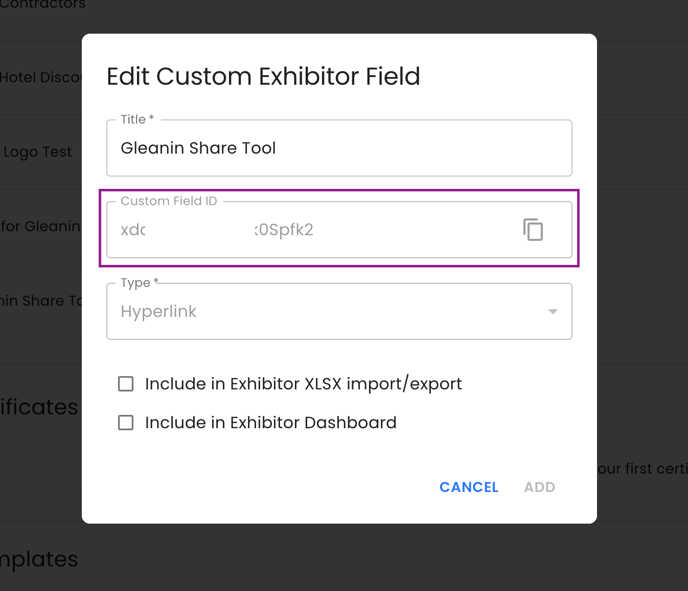
7. After the custom field has been successfully added, please log in to your **Gleanin** account and go to the **Integrations**
8. Click on the **plus icon** next to the **Outbound** section within your existing **FFAIR** inbound integration.
9. From the dropdown menu, choose the specific campaign to which you would like to send exhibitor links to your **FFAIR** account.
10. Paste the Gleanin Share Tool **Custom Field ID** (screenshot above) into the **Field name on provider for Gleanin links.**
11. Click on the **Check custom field** option to verify that it has been correctly set up on the **FFAIR** side.
12. If the verification is successful, proceed by clicking on the **Create** button.
13. After successfully setting up the outbound integration, it will be visible on your integrations page.
14. Select the **Initiate Export** icon to transfer the campaign links to your ASP account.
To **delete** the outbound integration, simply click on the **Trash icon**. Please note that this action will not remove any links that have already been sent to your **FFAIR** event.
Please be aware that the outbound integration feature is available for exhibitor campaigns only
View the set-up here:
---
Shareable version available here : [FFAIR/Gleanin Docs](https://drive.google.com/file/d/1wq2rjwOkOM-KuNphXPEgh04Ekfg0WuvA/view?usp=sharing)
- [Become FFAIR Accredited](https://support.ffair.io/organiser-knowledge-base/become-ffair-accredited?hsLang=en)
- [Your FFAIR Account](https://support.ffair.io/organiser-knowledge-base/your-ffair-account?hsLang=en)
- [Show Set Up](https://support.ffair.io/organiser-knowledge-base/show-set-up?hsLang=en)
- [Your Show Info](https://support.ffair.io/organiser-knowledge-base/your-show-info?hsLang=en)
- [Managing Exhibitor Tasks](https://support.ffair.io/organiser-knowledge-base/managing-exhibitor-tasks?hsLang=en)
- [Managing Exhibitors](https://support.ffair.io/organiser-knowledge-base/managing-exhibitors?hsLang=en)
- [Exhibitor Shop](https://support.ffair.io/organiser-knowledge-base/exhibitor-shop?hsLang=en)
- [Reporting & Data Collection](https://support.ffair.io/organiser-knowledge-base/reporting-data-collection?hsLang=en)
- [Integrations](https://support.ffair.io/organiser-knowledge-base/integrations?hsLang=en)
- [FAQ's](https://support.ffair.io/organiser-knowledge-base/faqs?hsLang=en)
- [FFAIR Best Practices](https://support.ffair.io/organiser-knowledge-base/ffair-best-practices?hsLang=en)
[mailto:email@email.com](mailto:email@email.com)
Copyright © 2025, FFAIR Ltd