
Libraries let you build Build/Persona Types, Show Info and Tasks once at company level and reuse them across all your shows. Update the Library version and every show using it updates too. No more recreating the same task or manual section on every show.
This article covers how Libraries work in general. For the detail on each one, see:
Who can use Libraries
Libraries are managed by Organiser Admins (company admin access). Show Admins without company admin access can still work with tasks, Show Info and build types on their shows, but can't manage the Library or add items from it.
Where to find them
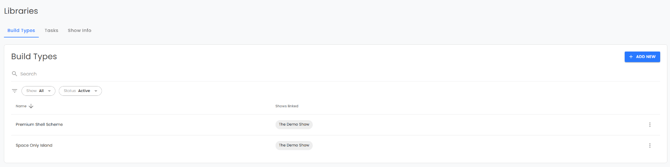
In the Organiser Portal at company level, open the Libraries tab. You'll see three sub-tabs:
- Tasks
- Show Info
- Build Types
Each list has a search, filters (by show and by status, Active or Archived) and a Shows linked column so you can see at a glance where each item is used.
Library items vs local items
Everything on a show is now one of two things:
- Library item (linked). The master version lives in the Library. The show uses it, but the core content is read-only on the show. Edit it in the Library and the change reaches every linked show. You'll see a banner such as Task is added to the library or a linked to Library badge.
- Local item. Lives on that one show only and is fully editable there, exactly as before. You'll see a banner such as Local task (not added to the library).
Nothing changes for how you work today. Existing tasks, Show Info and build types stay local and keep working as they always have. Nothing is moved into the Library automatically. You choose what to add.
Getting items into the Library
There are two ways:
- Create it in the Library. Go to Libraries, pick the sub-tab and click ADD NEW (or + ADD CATEGORY / + ADD SECTION for Show Info).
- Push it up from a show. On any local item on a show, use Add to Library. The show's item becomes linked to the new Library master.
Getting Library items onto a show
Again, two ways:
- From the show. On the show's Tasks, Show Info or Build/Persona Types page, click add and choose Add from library. Pick what you need and it's added as linked. (Add local still creates a show-only item, as before.)
- From the Library. Open the item in the Library and use Add to Show to tick the shows it should go on. Only current and upcoming shows are listed.
What you can still change on each show
The Library owns the core content (for example a task's title, description and answer options, or a Show Info section's text). Anything that's genuinely show-specific stays editable per show, such as:
- Which build types an item is assigned to (copied from the Library as a starting point, then yours to change on the show)
- Task approvals, followers, packages, exhibitor assignment, certificates and due date overrides
- Show Info ordering, sorting, pinning and pop-ups
- Build type hide options and label overrides
Unlinking an item from the Library
If one show needs to go its own way, open the item on the show, click the ⋮ menu and choose Unlink from library. The item stays on the show with its current content, becomes local and fully editable, and keeps all its exhibitor assignments and responses. Other shows and the Library master are not affected.
Internal names: same title, different versions
Sometimes you need two Library versions of something with the same title. For example, a Show Info section called Venue details with one version for the NEC and another for ExCeL. Exhibitors should just see "Venue details", but you need to tell them apart.
That's what the Internal name field is for. It's only visible to you, and shows as Title (Internal name), for example Venue details (NEC) and Venue details (ExCeL). If you try to add something to the Library with a title that already exists, FFAIR will ask you to either replace the existing item or add an internal name.
Internal names are used for tasks and Show Info sections. Build types and Show Info categories don't use them: a matching name is merged with the existing one instead.
Archive vs Remove
- Archive hides an item from the active list and from pickers, so it can't be added to new shows. Shows already using it keep it, and you can still edit it. Use Unarchive to bring it back.
- Remove deletes the Library item. You can only remove something that isn't used on any show. If it is, FFAIR tells you how many shows use it with a See the list link, so you can remove or unlink it there first (or archive it instead).
Removing a linked item from a single show only removes it from that show. The Library master and other shows are untouched.
Importing from the Library when you create a show
When you create a new show, the Add New Show window now gives you two options:
- Do not import content
- Import content (Show Info, Tasks, Build types, Branding)

Choose import, click the arrow and pick what you want from each library.
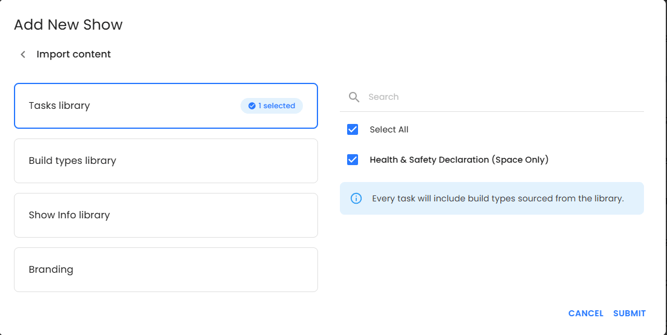
Tasks, Build types and Show Info come in linked to the Library. Branding (logo, banner image, show card image, primary colour, theme and background) is copied from another show you choose, as a one-off copy. Branding import needs the Custom Branding feature on the show.
This replaces the old "copy from another show" option at show creation.
Good to know
- Changes to a Library item reach linked shows straight away.
- Build types assigned to a task or Show Info section in the Library are added to the show when you import them, if they're not already there.
- Shows that have ended aren't offered when assigning from the Library.