
Every exhibitor's task list, order history, and portal access in FFAIR is tied to their stand number. Each stand needing its own task list must have a unique stand number — this is how the platform keeps exhibitors' progress and information separate.
This article covers:
- How stand numbers are assigned
- What's happening behind the scenes
- Updating a stand number for an existing exhibitor
- Swapping two stand numbers
- Splitting two accidentally merged stands
How stand numbers are assigned
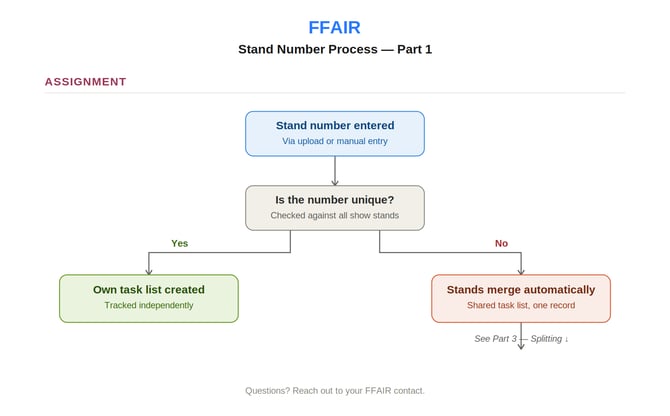
Stand numbers are set either when exhibitors are uploaded in bulk, or entered manually for individual exhibitors. FFAIR automatically checks the number against the rest of the show:
- Stand number entered — via upload or manual entry when adding an exhibitor.
- Uniqueness check — FFAIR checks this number against all other stands on the show.
- If unique — the stand gets its own independent task list, tracked separately from every other exhibitor.
- If not unique — the two stands automatically merge into a single shared task list. Completing a task on one marks it complete on both.
Note: A merge is rarely intentional. If two exhibitors are unexpectedly seeing each other's task progress, this is almost always the cause — and it's simple to fix using the process further down this article.
What's actually happening behind the scenes
It helps to understand what FFAIR is really doing when you rename, swap, or split stand numbers — not just which buttons to click.
- The stand number is the link, not just a label. Every task completion, uploaded file, order, and user account is stored against a stand's record. The stand number is the key the system uses to group everything belonging to that exhibitor.
- A shared number means a shared record. If two stands carry the same number, FFAIR treats them as a single combined record — there's effectively one task list being read and written to by both stands' users at once.
- Splitting means creating a new, separate record. When you change a stand's number to un-merge it, FFAIR creates a fresh, independent record for it, starting with a clean task list.
- The stand you update second keeps the original record. It stays attached to the existing record, retaining all its completed task history, uploaded files, and orders.
- Users follow the record, not the person. After a split, leftover users may appear on the wrong stand simply because they were added before separation happened — they need to be manually moved off.
Why sequence matters: There's no way for FFAIR to know which stand "should" keep the shared history when you split two merged stands. It keeps the history with whichever stand isn't touched first, and starts a clean slate for the one you update. Choosing the right order determines which exhibitor's progress is preserved.
Updating a stand number for an existing exhibitor
This applies any time you're changing an exhibitor's stand number for a normal reason — a floorplan change, a renumbering, correcting a typo — not just when fixing an accidental merge.
Before you update a single stand number:
- Check the destination number — confirm whether another exhibitor is already assigned to the stand number (or name) you're about to change to.
- If it's free — go ahead and update the stand number as normal. No further action needed.
- If it's already in use — update that other exhibitor's stand number first, before changing this one. Changing this one first will cause the two to merge.
⚠️ Important: Always confirm the destination stand number is free before updating. If you update into a number that's already taken, the two exhibitors will merge immediately, and you'll need to follow the full splitting process to separate them again.
Swapping two stand numbers
Swaps need extra care, because the two numbers you're moving between are both already taken — by each other.
Example: Exhibitor X is on stand 1, Exhibitor Y is on stand 2, and you need to swap them so X is on 2 and Y is on 1.
You can't simply update X straight to stand 2, because Y is still there — doing so would merge them. Instead, use the stand suffix field to keep them apart during the swap:
- Update Exhibitor X to the new number, plus a suffix — change X's stand number to 2, and add a suffix (e.g. "a") in the Stand Suffix field. X is now technically stand "2a" — distinct from Y, who is still plain "2".
- Update Exhibitor Y to the number X has vacated — Y can now move to stand 1 freely, since X is no longer there.
- Remove the suffix from Exhibitor X — once Y is safely moved off stand 2, go back to X and clear the suffix field. X now sits cleanly on stand 2 with nothing else attached to it.
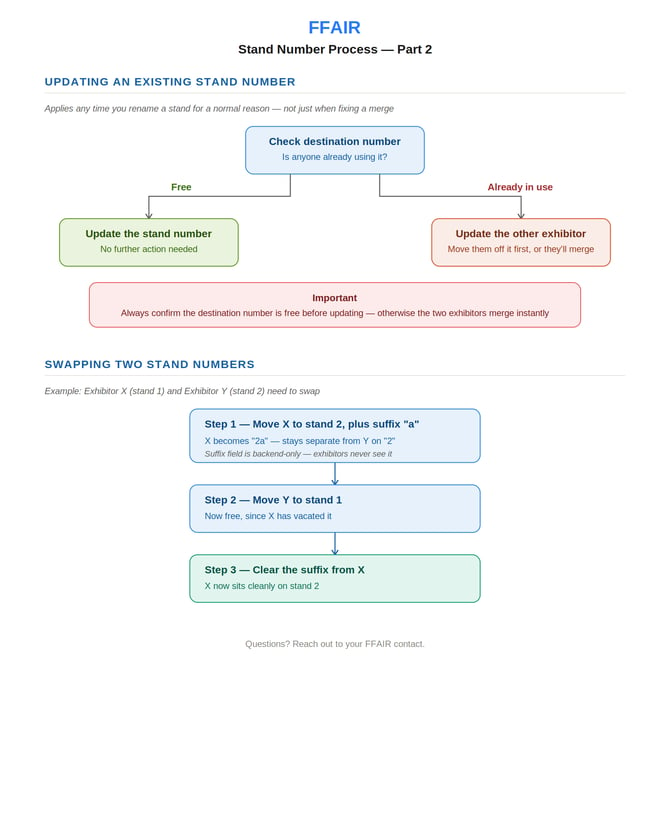
Note: The stand suffix field is a backend-only field — exhibitors never see it. To them, X and Y simply appear as being on stand 2 and stand 1 as expected; the suffix is only ever used internally to keep two stands apart while changes like this are in progress.
Splitting two merged stands
If two stands have ended up sharing a number, follow this process in order. The sequence matters — doing it out of order can affect completed task history.
- Confirm the correct numbers — agree what each stand's correct, unique number should be before making any changes.
- Check task history — look at both merged stands to see which one has actually completed tasks (both will currently show the same status, but the task history shows the true completer).
- Update the stand with no completions first — go to that stand's Settings page and edit the Stand Number field.
- Choose "Only for this stand" — when prompted, always choose to apply the change to this stand only. Never "update all stands," or both stands will simply be renumbered together rather than separated.
- Use the suffix field if needed — if the correct number still clashes with the other stand, add a short suffix (e.g. "1") to keep them distinct — for example 12 and 12A.
- Check the Users page — confirm only this stand's own users are listed. Remove any users who belong to the other stand (you may need to reassign the primary user first, as primary users can't be deleted directly).
- Repeat for the second stand — follow the same steps for the other stand. Because its tasks were already completed, that progress is retained — it won't be reset.
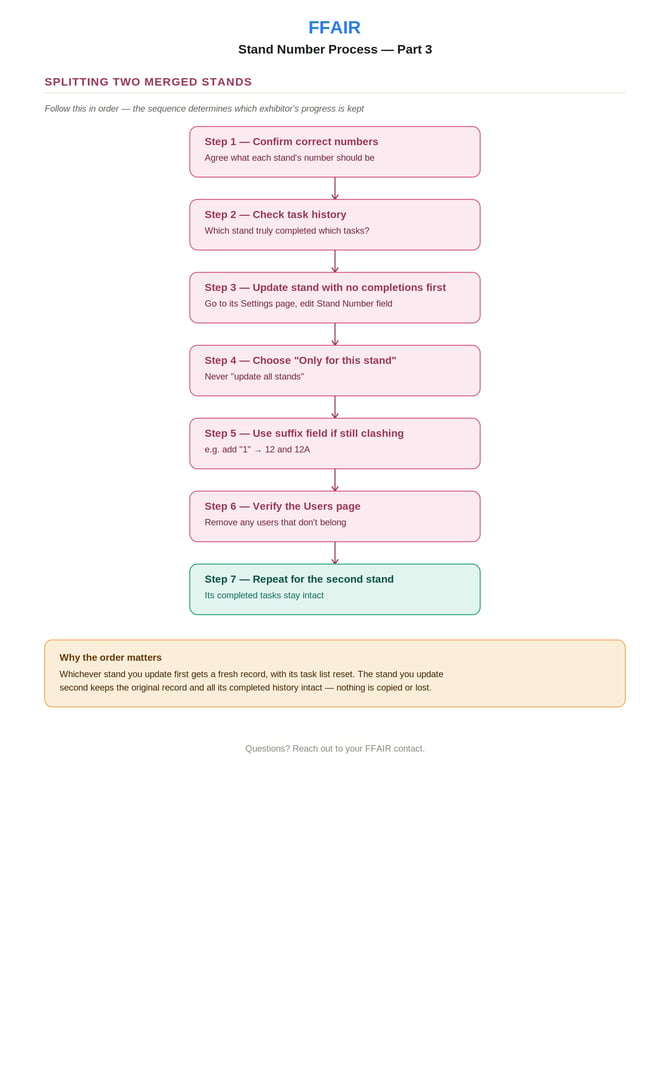
Note: Always update the stand with no completed tasks first. Its task list will reset as part of the split, but since nothing was completed, nothing is lost. Doing this second — after the other stand has already been separated — avoids resetting real progress.