---
title: Add Custom Exhibitor Fields
description: custom exhibitor fields - what are they and how to use them
---
[Skip to content](https://support.ffair.io/organiser-knowledge-base/migration/add-custom-exhibitor-fields#main-content)
[](https://www.ffair.io)
Open main navigation
Close main navigation
How can we help you?
- There are no suggestions because the search field is empty.
1. [FFAIR Organiser Knowledge Base](https://support.ffair.io/organiser-knowledge-base?hsLang=en)
2. [Show Set Up](https://support.ffair.io/organiser-knowledge-base/show-set-up?hsLang=en)
# Add Custom Exhibitor Fields
## What are Custom Exhibitor Fields?
**Introduction:** Custom Exhibitor Fields empower you to incorporate personalised information for each exhibitor, enhancing your ability to tailor Exhibitor Invite copy and task descriptions. These fields support various types such as Text, Paragraph, Hyperlink, Quantity, and File.
**How to add/use Custom Fields**
**1\. Navigate to the Settings Page:**
- Log in to your portal.
- Select the relevant Show.
- In the left menu, find and click on "Settings."
**2. Scroll Down to Custom Exhibitor Fields:**
- Within the Settings page, locate the section for Custom Exhibitor Fields.

**3. Press '+ CUSTOM EXHIBITOR FIELDS' Button:**
- Click on the '+ CUSTOM EXHIBITOR FIELDS' button to begin adding a new Custom Exhibitor Field.
**4. Enter the Custom Exhibitor Field Name:**
- Enter the desired name for the Custom Exhibitor Field.
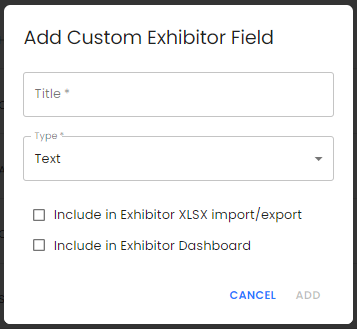
**Tip:** Maintain consistent formatting (e.g. Title Case) for effective Bulk Importing of exhibitors.
**5. Select the 'Type' of Custom Exhibitor Field:**
- When adding a Custom Exhibitor Field, you need to choose the appropriate 'Type' that aligns with the information you intend to capture.
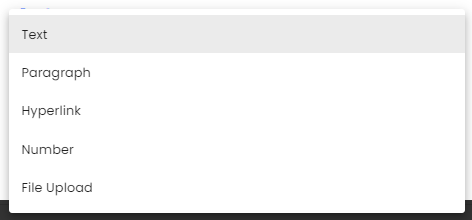
Below are examples to guide you:
**Text:**
*Example:* Discount codes
**Paragraph:**
*Example:* Approval details
**Hyperlink:**
*Example:* Registration link
**Quantity:**
*Example:* Ticket allocation
**File:**
*Example:* Contract
**Tip:** Selecting the right 'Type' ensures that the field accommodates the specific nature of the information you want to capture for each exhibitor.
**6. Field Configuration:**
- Check 'Include in Exhibitor XLSX import/export' to make the field importable with Exhibitor Bulk Upload and exportable XLXS Export.
- Check 'Include in Exhibitor Dashboard' to display the field in the exhibitors' Dashboard.
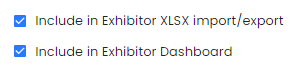
**Note:** Custom Exhibitor Field Categories won't appear on the Exhibitor Dashboard if there's no data for a particular exhibitor's Custom Exhibitor Field
**7. Press 'Add':**
- After entering all information, press 'Add' to create the Custom Exhibitor Field. Press 'Cancel' to close the modal without saving.
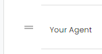
**8. Reorder Custom Exhibitor Fields:**
Adjust the order of Custom Exhibitor Fields in the Exhibitors' Dashboard by clicking and dragging the Grab Symbol next to each field.
**9. Edit a Custom Exhibitor Field:**
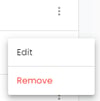
- To make changes, press the three-dot menu next to the field and select 'Edit.'
- The modal will appear; make your changes and press 'Add' when complete.
**10. Remove a Custom Exhibitor Field:**
- Press the three-dot menu next to the field and select 'Remove.'
**Warning:** Deleting a Custom Exhibitor Field will also permanently remove all linked data.
- [Become FFAIR Accredited](https://support.ffair.io/organiser-knowledge-base/become-ffair-accredited?hsLang=en)
- [Your FFAIR Account](https://support.ffair.io/organiser-knowledge-base/your-ffair-account?hsLang=en)
- [Show Set Up](https://support.ffair.io/organiser-knowledge-base/show-set-up?hsLang=en)
- [Your Show Info](https://support.ffair.io/organiser-knowledge-base/your-show-info?hsLang=en)
- [Managing Exhibitor Tasks](https://support.ffair.io/organiser-knowledge-base/managing-exhibitor-tasks?hsLang=en)
- [Managing Exhibitors](https://support.ffair.io/organiser-knowledge-base/managing-exhibitors?hsLang=en)
- [Exhibitor Shop](https://support.ffair.io/organiser-knowledge-base/exhibitor-shop?hsLang=en)
- [Reporting & Data Collection](https://support.ffair.io/organiser-knowledge-base/reporting-data-collection?hsLang=en)
- [Integrations](https://support.ffair.io/organiser-knowledge-base/integrations?hsLang=en)
- [FAQ's](https://support.ffair.io/organiser-knowledge-base/faqs?hsLang=en)
- [FFAIR Best Practices](https://support.ffair.io/organiser-knowledge-base/ffair-best-practices?hsLang=en)
[mailto:email@email.com](mailto:email@email.com)
Copyright © 2025, FFAIR Ltd