---
title: API Connection & SSO
description: FFAIR Open API & SSO
---
[Skip to content](https://support.ffair.io/organiser-knowledge-base/migration/api-connection-sso#main-content)
[](https://www.ffair.io)
Open main navigation
Close main navigation
How can we help you?
- There are no suggestions because the search field is empty.
1. [FFAIR Organiser Knowledge Base](https://support.ffair.io/organiser-knowledge-base?hsLang=en)
2. [Integrations](https://support.ffair.io/organiser-knowledge-base/integrations?hsLang=en)
# API Connection & SSO
## Understand the process of creating exhibitor users in the FFAIR portal using the FFAIR API, and setting up SSO for the exhibitors.
#### **1. Enabling API & SSO Integration**
To get started with API and SSO, enable the integration in your FFAIR Organiser Portal:
1. Log in to your **FFAIR Organiser Portal**.
2. Select the required show from the **"Shows"** page.
3. Navigate to **"Show Settings"** from the left-hand menu.
4. Go to the **"API & SSO"** section on the settings page.
5. Toggle the blue switch to enable the integration.
Once enabled, the API functionality can be used to create, update, and retrieve exhibitor data, while SSO ensures seamless login for exhibitors.
---
#### **2. GET AUTH TOKEN (GET)**
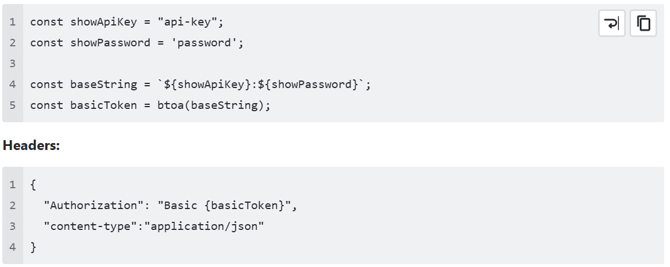
- https://us-central1-ffair-live.cloudfunctions.net/endpointsSSO-getAuthToken
Example of creating **basicToken:**
****
#### **3. CREATE EXHIBITORS**
Both update/create exhibitors use the same cloud function endpoint:
- https://us-central1-ffair-live.cloudfunctions.net/endpointsSSO-createExhibitors

**Create/Update Exhibitor** request example:
Note: **companyName**, **standNumber**, **contactEmail** fields can NOT be changed.
Note2: **exhibitorId** should be used when creating a new Exhibitor.
Note3: **externalURL** is associated with the exhibitor in a third-party system allowing users to easily return to the third-party system without requiring users to log in again.
It can be passed when creating or updating an exhibitor. The field is optional — omitting it does not affect exhibitor creation.Expected format: a valid URL string, e.g. `"https://your-system.com/exhibitors/12345"`.
{
"data":{
"showId":"",
"exhibitors":\[
{
// external exhibitor id
"exhibitorId":"12345", // string (required \*, use this when creating a new Exhibitor)
"internalId":"12345", // string (required \*, automatically generated, can be found in the resposnse body, when creting a new Exhibior, cannot be used when creating a new Exhibitor)
// \* -- only 1 of 2 must be in (xor operation)
"companyName":"First Company", // string (required)
"contactName":"Mark Strong", // string (required)
"contactEmail":"mark.strong@mailinator.com", // string (required)
"buildType":"build 1", // string (required)
"standNumber":"G34", // string (required)
"contactNumber":"343-43-35", // string (optional)
"companyAddress":"London, UK", // string (optional)
"companyPostcode":"343 KO9", // string (optional)
"isPrimary":true, // string (optional)
"standWidth":10, // float number (optional)
"standLength":12, // float number (optional)
"irregularArea":100, // float number (optional)
"openSides":30, // number (optional)
"standWallLength":13, // number (optional)
"contractorCompanyName":"Event Tech", // string (optional)
"externalUrl": "https://example.com/exhibitor/12345" // string (optional)
// to load packages, it must exists on the show
// package name must be one of the show package names
"packages":\[
{
"name":"Package 1", // string (required)
"quantity":3 // number (required)
},
{
"name":"Package 2",
"quantity":4 (number)
}
\], // array (optional)
// to load custom fields, it must exists on the show
// custom field id you can find in exhibitors template (Show Exhibitors-\>Bulk Upload -\> Downdload Template)
// custom field value for all types should be string;
// custom field file type value should be base64 file string;
// custom field file type supported extensions .doc,.docx,.pdf,.jpg,.jpeg,.png,.gif,.eps,.bmp,.xlsx;
// custom field file type maximum size is 5mb
"customFields":\[
{
"id":"jqWDUfXDA85b1gD6VhhS", // string (required)
"value":"123" // string (required)
},
{
"id":"FuwG0wI5511K7dYxQE5o", // string (required)
"value":"some text" // string (required)
}
\] // array (optional)
}
\]
}
}
**Note:** Multiple files can be uploaded to the same **File Upload** custom field on a single Stand via the **createExhibitors** API.
To achieve this, multiple objects with the same custom field ID must be included in the `customFields` array, e.g.:
"customFields": \[
{
"id": "customFieldId",
"value": "validFile1ConvertedToBase64String"
},
{
"id": "customFieldId",
"value": "validFile2ConvertedToBase64String"
},
{
"id": "customFieldId",
"value": "validFile3ConvertedToBase64String"
}
\]
**Note 2:** If a file is uploaded to a **File Upload** custom field via the **createExhibitors** API and the custom field already contains previously added files, the new file should be appended to the field. Existing files must **not** be replaced; they should remain.
Response Example:
{
"return": {
"exhibitors": \[
{
"email": "test\_api@mail.com",
"id": "BGoziHInalNh4HW0qKoa55DWyGk2",
"externalExhibitorId": "F112asjhkas911311",
"inviteLink": "https://app.ffair.io/sign-up/exhibitor?token=eyJhbGciOiJIUzI1NiIsInR5cCI6IkpXVCJ9.eyJzaG93SWQiOiJkaGJHcElicjU1NDhHZENpc0t3dCIsImV4aGliaXRvclBhaXJJZCI6ImJjMzk1Mjc5LTFlYTEtNDZiOC1iOWMzLTg5Y2U4NjM1NWMwMyIsImV4aGliaXRvclVzZXJDb25uZWN0aW9uSWQiOiI5M2M1YTEyNi00MjRmLTRlNDctYTc1OC03MjQ3NjNmMTI3YjgiLCJpYXQiOjE3Njg1Nzk4MjksImV4cCI6MTkyNjM2NzgyOX0.6MzWsFA0kbcUUTtD9J2sQUFJi\_yerrppjK61zMm4xTk"
}
\]
}
}
#### **GET EXHIBITORS**
https://us-central1-ffair-live.cloudfunctions.net/endpointsSSO-getExhibitors
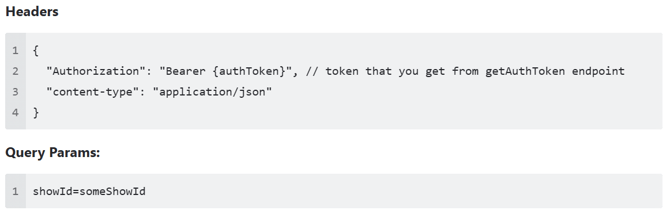
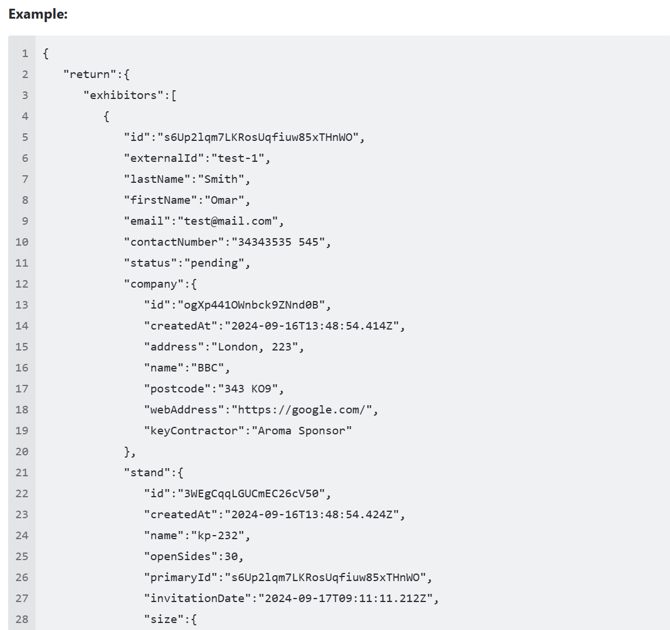
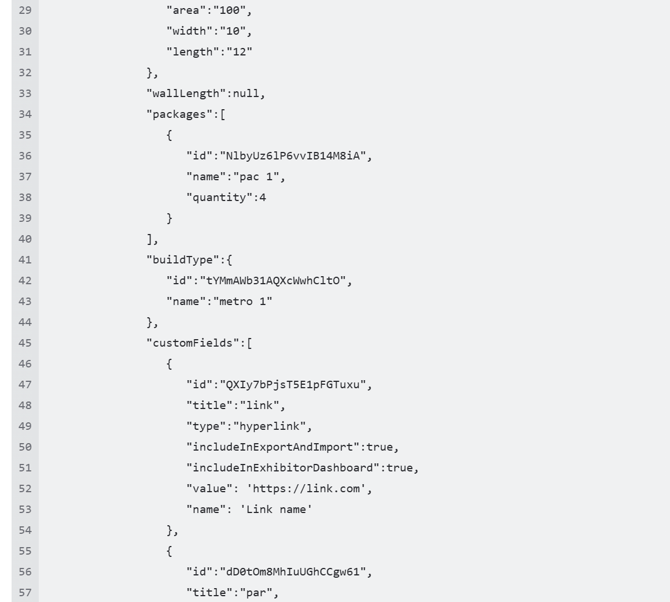
Return Exhibitor Data Type:
type ExhibitorStatus = "notInvited"|"pending"|"active"|"archived"|"blocked;
export type GetPackageResponse = {
id: string;
name: string;
quantity: number;
};
export type GetCustomFieldResponse = {
id: string;
title: string;
type: "text" | "hyperlink" | "number" | "fileUpload" | "paragraph";
value: string\[\] | string | number | null;
name?: string | null; // only for "hyperlink" type
};
export type GetExhibitorResponse = {
id: string;
externalId: string | null;
lastName: string;
firstName: string;
email: string;
inviteLink: string;
contactNumber: string | null;
status: ExhibitorStatus;
company: {
id: string;
createdAt: string;
address: string | null;
name: string;
postcode: string | null;
webAddress: string | null;
keyContractor: string | null;
};
stand: {
id: string;
createdAt: string;
name: string;
openSides: number | null;
primaryId: string | null;
invitationDate: string | null;
size: { area: string; width: string; length: string } | null;
wallLength: number | null;
packages: GetPackageResponse\[\];
buildType: {
id: string;
name: string;
};
customFields: GetCustomFieldResponse\[\]
};
};
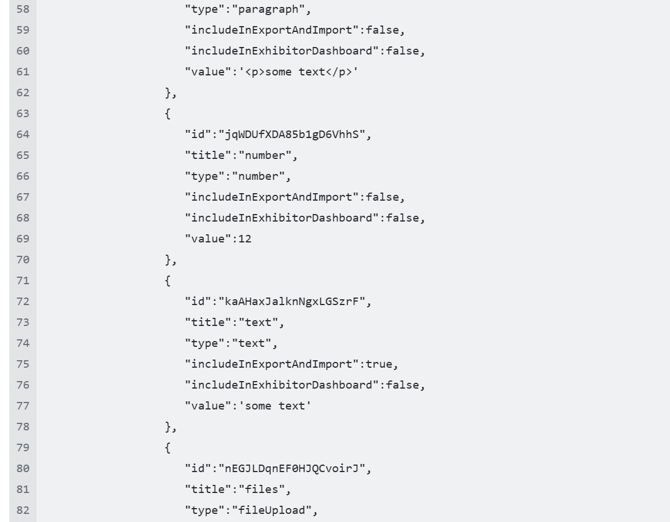
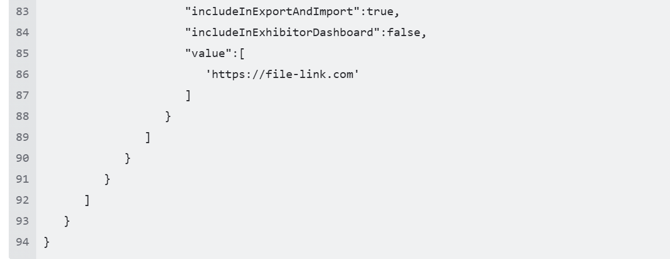
---
### **Exhibitor SSO login**
This document describes how to login into the FFAIR Exhibitor portal from an external source. We follow the [OAUTH 1.0. HMAC- SHA1 signature](https://www.rfc-editor.org/rfc/rfc5849#section-3.4) to generate and validate the URL
Assumptions:
\- Exhibitor users are created in the FFAIR and external system
\- Each exhibitor contact has the unique identifier that is the same in both systems
\- The API connection in the organiser’s portal is enabled
**Request method and URL**
**HTTP Method: GET**
**BaseURL:** [https://app.ffair.io/login/sso](https://app.ffair.io/login/sso)
**Parameters**
You now need to gather all the parameters used in the request and to generate the signature. Below are the list of parameters required.
| Parameter Name | Example Value | Description |
| --- | --- | --- |
| clientReference | 0x1vttknep8VizGkTYhL | This is a pre-shared value that is unique to each exhibitor and has to be uploaded to the both platforms |
| timestamp | 1318634455 | This is a UNIX timestamp. The link will expire 1 hour after this time. |
| showId | 7t9hlzjU4Z7xd5Dq9OXd | This is a pre-shared value that is unique to each show |
| signature | Yndh1rEqdxD%2bSnmF7jbxJ/zAGyo= | This is a value that has to be generated by using instructions below. |
Parameters need to be encoded into a single string which will be used later. The process to build the string looks like this:
1. Encode every key and value that will be signed.
2. Sort the list of parameters alphabetically
3. For each key/value pair:
1. Append the encoded key to the output string.
2. Append the ‘=’ character to the output string.
3. Append the encoded value to the output string.
4. If there are more key/value pairs remaining, append a ‘&’ character to the output string.
The following example string should be created:
| clientReference=0x1vttknep8VizGkTYhL&signature=Yndh1rEqdxD%2bSnmF7jbxJ/zAGyo=&showId=7t9hlzjU4Z7xd5Dq9OXd×tamp=1318634455 |
| --- |
**Signature base string**
The values collected so far need to be joined to make a single string from which we will generate the signature. This is called the signature base string.
To encode the HTTP method, base URL, and SSO parameters into a single string:
▪ Convert the HTTP Method to uppercase and set the output string equal to this value.
▪ Append the ‘&’ character to the output string.
▪ Encode the base URL and append it to the output string.
▪ Append the ‘&’ character to the output string.
▪ Encode the parameter string and append it to the output string.
These steps are made according to the [documentation](https://www.rfc-editor.org/rfc/rfc5849#section-3.4.1.1).
Signature base string looks like this:
| GET&https%3A%2F%2Fapp.ffair.io%2Flogin%2Fsso&clientreference%3D1 0x1vttknep8VizGkTYhL%26showId%3D17t9hlzjU4Z7xd5Dq9OXd%26timestamp%3D1318634455 |
| --- |
Make sure to percent encode the parameter string! The signature base string should contain exactly 2 ampersand ‘&’ characters. Any percent ‘%’ characters in the parameter string should be encoded as %25 in the signature base string.
**Calculating the signature**
Finally, the signature is calculated by passing the signature base string and signing key to the HMAC- SHA1 hashing algorithm. The output of the HMAC signing function is a binary string. This needs to be base64 encoded to produce the signature string.
After calculating the signature should looks like this:
Yndh1rEqdxD%2bSnmF7jbxJ/zAGyo=
Putting parameter and signature all together creates a final SSO link:
| https://app.ffair.io/login/sso?clientreference=0x1vttknep8VizGkTYhL&showId=7t9hlzjU4Z7xd5Dq9OXd×tamp=1318634455&signature=Yndh1rEqdxD%2bSnmF7jbxJ/zAGyo= |
| --- |
See our documentation here: [Public API \* SSO](https://drive.google.com/file/d/1C1l2kSkC4rJF8jQbMD7wQd-Q5074DZ83/view?usp=sharing)
``
- [Become FFAIR Accredited](https://support.ffair.io/organiser-knowledge-base/become-ffair-accredited?hsLang=en)
- [Your FFAIR Account](https://support.ffair.io/organiser-knowledge-base/your-ffair-account?hsLang=en)
- [Show Set Up](https://support.ffair.io/organiser-knowledge-base/show-set-up?hsLang=en)
- [Your Show Info](https://support.ffair.io/organiser-knowledge-base/your-show-info?hsLang=en)
- [Managing Exhibitor Tasks](https://support.ffair.io/organiser-knowledge-base/managing-exhibitor-tasks?hsLang=en)
- [Managing Exhibitors](https://support.ffair.io/organiser-knowledge-base/managing-exhibitors?hsLang=en)
- [Exhibitor Shop](https://support.ffair.io/organiser-knowledge-base/exhibitor-shop?hsLang=en)
- [Reporting & Data Collection](https://support.ffair.io/organiser-knowledge-base/reporting-data-collection?hsLang=en)
- [Integrations](https://support.ffair.io/organiser-knowledge-base/integrations?hsLang=en)
- [FAQ's](https://support.ffair.io/organiser-knowledge-base/faqs?hsLang=en)
- [FFAIR Best Practices](https://support.ffair.io/organiser-knowledge-base/ffair-best-practices?hsLang=en)
[mailto:email@email.com](mailto:email@email.com)
Copyright © 2025, FFAIR Ltd