---
title: Email Cloaking Feature
description: Email cloaking upgrade
---
[Skip to content](https://support.ffair.io/organiser-knowledge-base/migration/email-cloaking-feature#main-content)
[](https://www.ffair.io)
Open main navigation
Close main navigation
How can we help you?
- There are no suggestions because the search field is empty.
1. [FFAIR Organiser Knowledge Base](https://support.ffair.io/organiser-knowledge-base?hsLang=en)
2. [Show Set Up](https://support.ffair.io/organiser-knowledge-base/show-set-up?hsLang=en)
# Email Cloaking Feature
## The Email Cloaking feature is a paid upgrade designed for Organisers who want all notifications for their events to come from a custom-defined email address. This feature ensures professional, branded, and secure email communications.
#### How to Access the Email Cloaking Feature
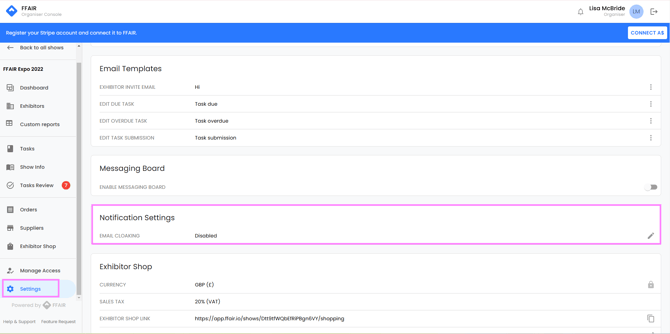
- Go to the "Show Settings" section in your organiser dashboard.
- Locate the "Notification Settings" section.
- Click the 'Pencil' icon to open the purchase pop up.
---
#### Purchasing the Email Cloaking Feature
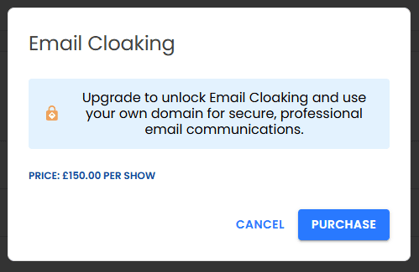
- Click the "Purchase" button in the pop-up.
- Complete the payment through the embedded Stripe page.
- A receipt will be generated and sent to your registered email by Stripe.
---
#### Using the Email Cloaking Feature
1. **Enable Custom Notification Sender:**
- Open the "Notification Settings" section.
- Click the "Change Notification Sender" toggle to turn it on.
2. **Fill in the Required Fields:**
- **From Name:** Enter the sender's name (required).
- **From Email Address:** Enter the email address to be used as the sender (required). Ensure it follows standard REGEX validation.
- **Reply-To:** Provide a valid email address for replies (required).
- **Email DNS instructions to:** Our team will send an email with final instructions for set-up. Ideally, this email will go to your internal IT team. Please enter their email address here, to prompt this email.
- Toggle '**Change Notification Sender**' to enabled
- Click **Submit.**
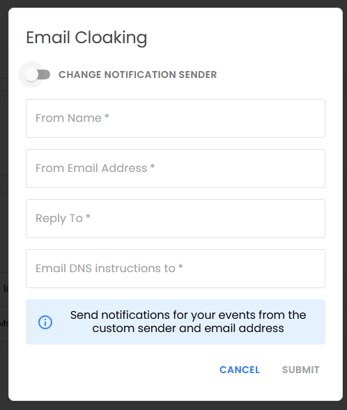
Clicking Submit will trigger the DNS instructions email to be sent to the email address provided. This email provides instructions for your IT team to vaidate the cloaking on your side.
1. **Validation Process:**
- The system will extract the domain from your email address and whitelist it in the email sender platform before activating the custom sender.
- **Shared Email Domains:** If you attempt to use the same email domain for multiple shows, a confirmation pop-up will appear: "This email domain is used by another show. Changing the credentials will update them for all associated shows. Do you want to proceed?"
- **Reverting to Default Sender:** You can switch back to the default notification sender at any time by turning off the "Change Notification Sender" toggle.
- [Become FFAIR Accredited](https://support.ffair.io/organiser-knowledge-base/become-ffair-accredited?hsLang=en)
- [Your FFAIR Account](https://support.ffair.io/organiser-knowledge-base/your-ffair-account?hsLang=en)
- [Show Set Up](https://support.ffair.io/organiser-knowledge-base/show-set-up?hsLang=en)
- [Your Show Info](https://support.ffair.io/organiser-knowledge-base/your-show-info?hsLang=en)
- [Managing Exhibitor Tasks](https://support.ffair.io/organiser-knowledge-base/managing-exhibitor-tasks?hsLang=en)
- [Managing Exhibitors](https://support.ffair.io/organiser-knowledge-base/managing-exhibitors?hsLang=en)
- [Exhibitor Shop](https://support.ffair.io/organiser-knowledge-base/exhibitor-shop?hsLang=en)
- [Reporting & Data Collection](https://support.ffair.io/organiser-knowledge-base/reporting-data-collection?hsLang=en)
- [Integrations](https://support.ffair.io/organiser-knowledge-base/integrations?hsLang=en)
- [FAQ's](https://support.ffair.io/organiser-knowledge-base/faqs?hsLang=en)
- [FFAIR Best Practices](https://support.ffair.io/organiser-knowledge-base/ffair-best-practices?hsLang=en)
[mailto:email@email.com](mailto:email@email.com)
Copyright © 2025, FFAIR Ltd