
The Show Info Library lets you write your exhibitor manual content once and reuse it across shows. Keep standard sections like health and safety, deliveries or venue details in one place, and any update you make reaches every show using them.
New to Libraries? Start with the Libraries overview article.
Where to find it
Organiser Portal (company level) > Libraries > Show Info.
Content is organised as Categories with Sections inside them, the same as on a show. Click a category to expand it. From here you can:
- PREVIEW SHOW INFO to see the Library manual as a whole
- ADD CATEGORY and ADD SECTION
- Search and filter by Show and Status (Active or Archived)
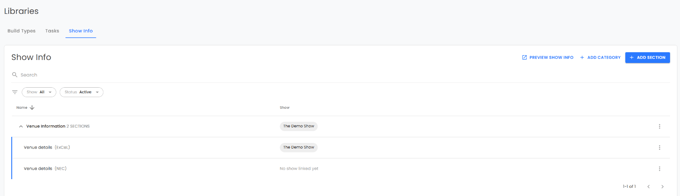
A category only appears in the Library once it has at least one section in it.
Create content in the Library
Add a category
Click ADD CATEGORY, enter a title and save.
Add a section
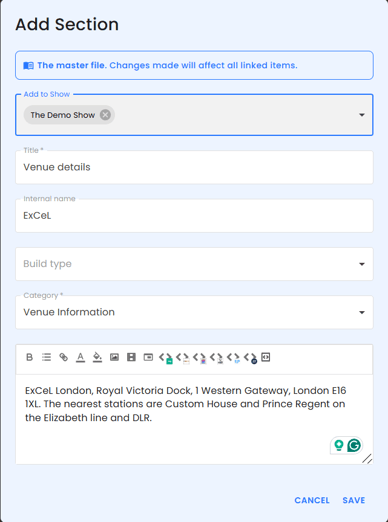
- Click ADD SECTION.
- Optionally use Add to Show to put it on shows straight away.
- Enter a Title.
- Optionally add an Internal name (see below).
- Optionally choose the Build type(s) it applies to.
- Choose the Category it belongs to.
- Write the content. You can include links to other sections and variables.
- Click SAVE.
Internal names
An internal name lets you keep more than one Library version of a section with the same title. Exhibitors only see the title. You see Title (Internal name).
Example: a section titled Venue details with internal names ExCeL and NEC. Each show uses the right version, and exhibitors at both just see "Venue details".
A show can only have one section with a given title, so pick the version you need for each show.
Add Library content to a show
- Open the show's Show Info page.
- Click the + button and choose Add from library.
- Search or browse the categories. Ticking a category ticks all its sections, or expand it to pick individual sections. Anything already on the show is greyed out.
- Click ADD SECTION.
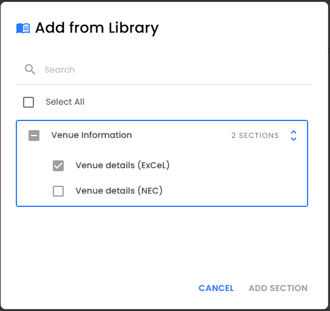
Adding a section also brings its category onto the show if it isn't there already. Add local still creates a show-only section as before.
If the show already has a section with that name
You'll see a Duplicate warning. You can either:
- REPLACE LOCAL ITEM: the show's section is replaced with the Library version and linked. The local content is deleted.
- CANCEL: leave the show as it is.
If only the category name matches, the new section is simply added into the existing category.
Push a show's section into the Library
New sections created on a show are local. To share one, open it and click ADD TO LIBRARY. Its category comes along with it.
If a section with the same title is already in the Library, you'll be asked to choose:
- Replace library section for local one: pick which Library version to overwrite with this content.
- Create new section: change the title or add an internal name so it becomes a separate Library section.
If the category name already exists in the Library, the section is added into that category.
What's shared and what's per show
On the show, Library sections have a linked to Library badge and a locked edit icon. Local sections can be edited as normal, and a category can hold a mix of both.

- Category title: Library. Locked on the show.
- Section title, content and tags: Library. Locked on the show.
- Build types the section shows to: Copied from the Library when added, then editable per show. Later Library changes don't overwrite it.
- Order and A to Z sorting: Per show
- Pin: Per show
- Pop-up: Per show
Editing Library content
Edit the category or section in the Library and the change appears on every linked show. All editing of shared Show Info content happens in the Library.
Unlink from the Library
- Unlinking a section copies its current content onto the show and makes it local and editable. It stays in its category.
- Unlinking a category (the unlink icon on the category heading) only makes the category title local. The sections inside it stay linked to the Library.
Variables
Section content can include variables, for example an integration link or a stand detail. They fill in per show. If a variable has no value on a show, exhibitors see a soft variable is unresolved placeholder. It never blocks anything.
Archive or remove
- Archive keeps the content on shows already using it, but stops it being added to new shows.
- Remove only works when no show uses it. Otherwise you'll get a See the list link to the shows using it.
- Removing a Library section from one show only affects that show.