
The Task Library lets you build a task once and use it on as many shows as you like. Change it in the Library and every show using it updates. Each show can still set its own build types, packages, approvals and due date.
New to Libraries? Start with the Libraries overview article. You'll need at least one build type in the Build Type Library before you can create Library tasks.
Where to find it
Organiser Portal (company level) > Libraries > Tasks.
The list shows each task with its internal name in brackets, and the Shows linked to it. Filter by Show, Status or Tags.
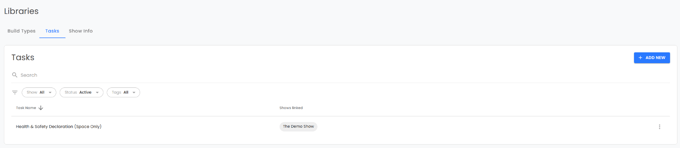
Create a task in the Library
- Click ADD NEW.
- Optionally use Add to Show to add it to current or upcoming shows straight away.
- Set up the task as you would on a show: title, response type, description, options and any conditional tasks.
- Optionally add an Internal name (see below).
- Under Assign to, choose the build type(s) it applies to. It defaults to all build types in the Library.
- Check the Due date (see below).
- Click ADD.
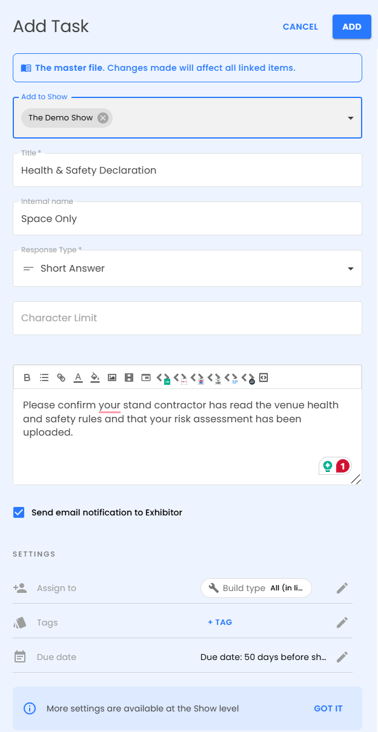
Some settings, such as approvals and followers, are only available at show level. The Library editor reminds you of this.
Add Library tasks to a show
- Go to the show's Tasks page.
- Click the + button and choose Add from library.
- Search, tick the tasks you want (or Select All) and click ADD TASKS. Tasks already on the show are greyed out.
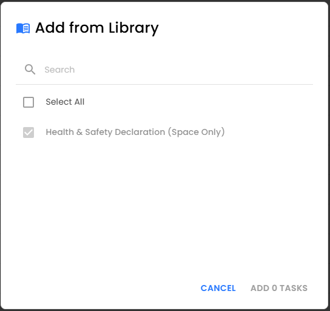
The tasks are added linked to the Library. Any build types the task is assigned to that aren't on the show yet are added too, and you'll see a message letting you know.
If the show has build types the task isn't assigned to, you'll see This task is not assigned to all build types on this Show. in the task's Assign to view. That's just a heads up. Nothing is assigned automatically, so widen it if you need to.
Add local still creates a show-only task, and Copy on a show always creates a local copy.
Push a show's task into the Library
Open a local task (it shows Local task (not added to the library)) and click ADD TO LIBRARY.
- If no Library task has that name, it's added and linked.
- If the name is already taken, you'll be asked to add an Internal name so it becomes a separate Library task. Tasks are never merged, as that could overwrite content and lose exhibitor responses.
- If the task uses build types that aren't in the Library yet, you'll be shown which ones will be added to the Build Type Library first. Click Add to Library to go ahead or Cancel to stop.
Internal names
In the Library, two tasks can only share a title if they have different internal names. They show as Title (Internal name), for example Health & Safety Form (Space Only). Exhibitors only ever see the title. On a show, duplicate task names are fine.
What's shared and what's per show
Open a Library task on a show and you'll see the Task is added to the library banner. Fields owned by the Library show a lock. Show-level settings like approval, assignment and due date can still be edited.
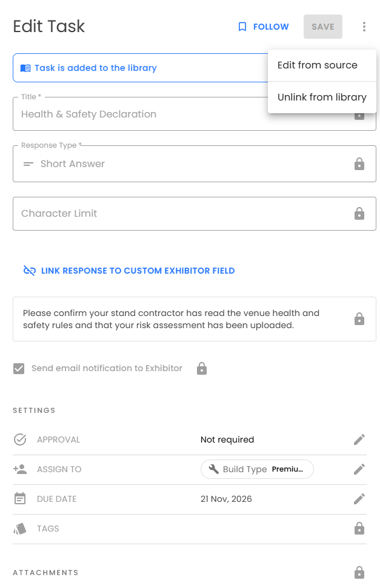
- Title, description, attachments: Library. Read-only on the show.
- Response type, answer options, Multitask sub-tasks, grid setup: Library. Read-only on the show.
- Conditional tasks: Library. Read-only on the show.
- Tags and submission email setting: Library. Read-only on the show.
- Build type assignment: Copied from the Library when added, then editable per show. Later Library changes don't overwrite it.
- Due date: Follows the Library unless the show sets its own (see below).
- Approvals, feed, followers, packages, exhibitor assignment, certificate, linked custom field: Per show
Package and exhibitor assignment on a show work alongside the build type assignment. An exhibitor needs to match both to see the task.
Due dates
Library tasks use relative due dates, so one task works for every show:
- By days before the show start date
- By days after an invitation date
Each show works out the actual date from its own start date. If a show's dates move, the deadline moves with them.
New tasks default to 50 days before the show start date. This applies in the Library and to new local tasks on a show. Change it before saving if you need to. If the show starts in less than 50 days, a default task will be overdue straight away, so check the due date when you add it.
On a show, you can set a different due date for a Library task, including a fixed date. The show's setting then replaces the Library one completely, and later Library due date changes won't affect that show.
If you push a task with a fixed date into the Library, the Library version gets the 50 day default and the show keeps its fixed date.
Conditional tasks
Conditional tasks (tasks that appear based on an answer to another task) are kept together:
- Adding a parent task from the Library brings all of its conditional tasks with it. You can't untick them while the parent is selected.
- Adding a conditional task on its own is fine. It works as a normal standalone task on the show until its parent is added. Once the parent is added, they reconnect automatically.
- Pushing a parent to the Library pushes all of its conditional tasks too. You'll see a list of the tasks that will be added before confirming.
- Unlinking works on the parent, which unlinks the whole group together so the logic keeps working. You can't unlink a conditional task on its own.
Variables in task descriptions
You can add variables to a task description and they fill in per show:
- Integration variables such as ExpoPlatform, ASP or Visit, which give the exhibitor a direct link into that system. These only work on shows where the integration is switched on.
- System variables such as stand number or stand size.
- Custom field variables, which fill in on the show the custom field belongs to.
If a variable has no value on a show, exhibitors see a soft variable is unresolved placeholder. It never stops them completing the task.
Editing a task that already has responses
To protect exhibitor answers, some changes are locked once a task has any response, including drafts.
On a Library task (responses on any linked show):
- You can still edit the title, description, due date, limits, file types and required settings.
- You can add and rename answer options, and add or reorder Multitask sub-tasks.
- You can't change the response type or grid layout, remove or reorder options, change conditional tasks, or remove sub-tasks.
On a local task:
- You can't change the response type or grid layout.
- You can add, rename, reorder and remove options, attach and detach conditional tasks, and add, remove and reorder sub-tasks.
- Removing an option or sub-task that has answers asks you to confirm first, as those answers will be deleted.
If you need to change something that's locked, create a new task.
Edit from source and unlinking
Open a linked task on a show and click the ⋮ at the top right of the task. You'll see:
- Edit from source (Organiser Admins only): opens the Library task on top of the show so you can edit it without leaving the page. Changes reach every linked show.
- Unlink from library: the task stays on the show with its current content and due date, becomes local and editable, and keeps all responses and assignments.
Company-level settings
As part of this release, two task settings have moved from show level to company level:
- Tags are now one shared list across your company, so a task's tags go with it to every show. Matching tags from different shows have been combined.
- File upload settings. In the Library you can set a task's File Size Limit (Per File) above 10 MB. On each show, exhibitors can upload up to whichever is lower: the task limit or that show's storage plan. Without a storage upgrade the limit is 10 MB. Use SEE OPTIONS to pick a show and upgrade its storage. Upgrades are bought per show.
Archive or remove
- Archive keeps the task on shows already using it, but stops it being added to new shows.
- Remove only works when no show uses it. Otherwise you'll get a See the list link to the shows using it.
- Removing a Library task from one show only affects that show.