---
title: Making Your Products Live in a Show Shop
description: Making Products Live
---
[Skip to content](https://support.ffair.io/supplier-knowledge-base/making-your-products-live-in-a-show-shop#main-content)
[](https://www.ffair.io)
Open main navigation
Close main navigation
How can we help you?
- There are no suggestions because the search field is empty.
1. [FFAIR Supplier Knowledge Base](https://support.ffair.io/supplier-knowledge-base?hsLang=en-gb)
2. [Managing your Shop](https://support.ffair.io/supplier-knowledge-base/managing-your-shop?hsLang=en-gb)
# Making Your Products Live in a Show Shop
## Once your products are added, there are two steps you must complete before they appear in a show shop - assign them to the show, and make them visible.
***Added your products but they're not showing up in the shop yet?***
This is the most common step suppliers miss. Adding a product to your account doesn't automatically make it live — you need to assign it to the show and then make it visible. Here's how.
---
#### **Step 1: Assign Your Products to the Show**
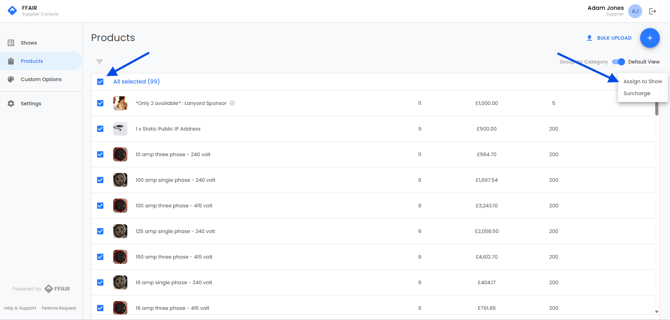
1. Log in to your supplier console.
2. Click on the **Products** page tab.
3. Check the box to the left of the product(s) you want to assign.
4. Click the **three dots** that appear in the top right of the page.
5. Click **Assign to Show**.
6. In the pop-up, check the box beside the relevant show(s).
7. Click **Submit**.
Your product(s) will now appear on the Products page within that show — but they are not visible in the shop yet.
---
#### **Step 2: Make Your Products Visible in the Shop**
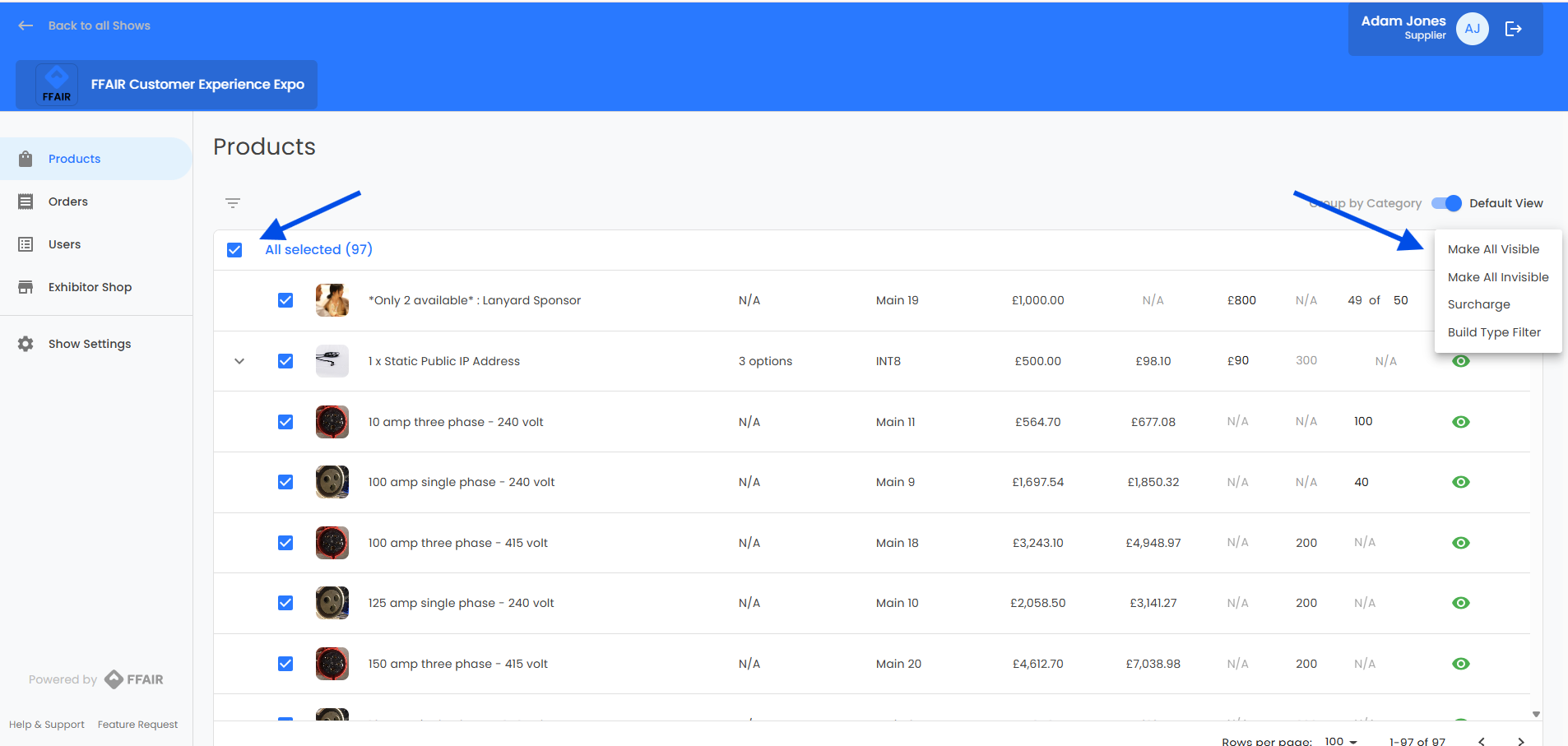
1. From the main navigation, go into the relevant **Show**.
2. Click on the **Products** page within that show.
3. Check the box to the left of the product(s) you want to make live.
4. Click the **three dots** in the top right.
5. Click **Make Visible**.
Your products will now appear in the show shop and be visible to exhibitors.
**Only make a product visible when you are happy with all of its information** — including images, description, and pricing. Exhibitors will be able to see and order the product as soon as it is visible.
---
**Summary**
To get a product live in a show shop you need to complete both steps: **Assign to Show**, then **Make Visible**. Completing only one of these steps means the product won't appear for exhibitors.
For help adding or editing product information, see the [View/Manage Products](https://support.ffair.io/supplier-knowledge-base/migration/view/manage-products?hsLang=en-gb) article.
- [Supplier Onboarding Guide](https://support.ffair.io/supplier-knowledge-base/supplier-onboarding-guide?hsLang=en-gb)
- [Account Set Up](https://support.ffair.io/supplier-knowledge-base/account-set-up?hsLang=en-gb)
- [Managing your Products](https://support.ffair.io/supplier-knowledge-base/managing-your-products?hsLang=en-gb)
- [Managing your Shop](https://support.ffair.io/supplier-knowledge-base/managing-your-shop?hsLang=en-gb)
- [Managing Shop Orders](https://support.ffair.io/supplier-knowledge-base/managing-shop-orders?hsLang=en-gb)
- [Accounting](https://support.ffair.io/supplier-knowledge-base/accounting?hsLang=en-gb)
- [Integrations](https://support.ffair.io/supplier-knowledge-base/integrations?hsLang=en-gb)
- [FAQs](https://support.ffair.io/supplier-knowledge-base/faqs?hsLang=en-gb)
[mailto:email@email.com](mailto:email@email.com)
Copyright © 2025, FFAIR Ltd