In this guide, we will explain:
- Price Breakdown
- Net Amounts
- Invoices - how to download
- Invoices - information breakdown
- Orders - how to download
Looking for how Stripe payments and payouts work? See our separate Stripe Payments & Payouts guide.
Price Breakdown
When you add a product on FFAIR you are required to set a price. 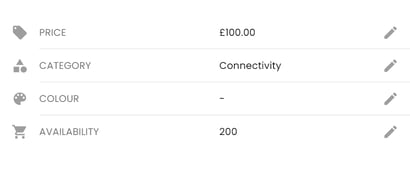 This price is the NET Price of the product. Platform fees (inc Stripe fees) and organiser fees are automatically added to this price before it appears in the Exhibitor Shop. You can view the 'Shop Price' vs the 'NET Price' from the 'Products' page within a show.
The organiser fee is pre-agreed between the supplier and the event organiser. It is then set by the organiser in their FFAIR console. You can view applicable fees in the 'Show Settings' page:
- Organiser Fee - The percentage fee that the organiser receives for every purchase order via the exhibitor shop.
- Platform Fee (includes Stripe Fees) - The total percentage fee that the FFAIR platform / Stripe receives for every purchase order via the exhibitor shop.
If you think the Organiser fee is incorrect, please contact them directly.
NET amounts
When an exhibitor makes a purchase via the Exhibitor shop, their total price will be comprised of:
- Shop price (your net price + platform/organiser fees)
- Sales Tax (Varies by location)
- Example Exhibitor Shopping Cart below:
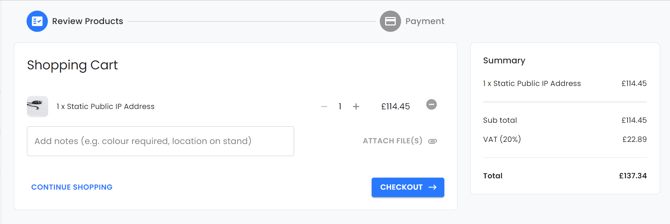
The Sales Tax charged is paid to you as the supplier. In a scenario where products from multiple suppliers are included in a single order, the VAT for each product is calculated separately based on the supplier's VAT rate. The total VAT amount for the order is then split among the suppliers based on the value of their products in the order.
For example, if Supplier A's products account for 60% of the total order value and Supplier B's products account for 40%, the VAT amount would be split accordingly between the two suppliers based on their contribution to the total order value.
Invoices
When an exhibitor places an order, you will receive an automated email immediately with the orders details and supplier invoice attached. You can also download invoices at any time, from your FFAIR console:
Individual Invoice download:
- Click on the required show.
- Click on the 'Orders' page.
- Find the desired order
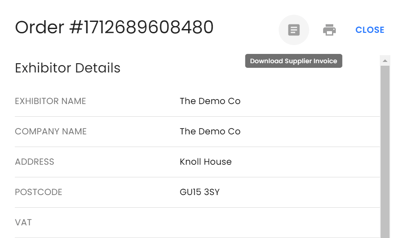
- Click the
 icon to the right of the order details
 - On the pop-up page, beside the Order Number, click the
 icon.
icon. - This will download the single supplier invoice.
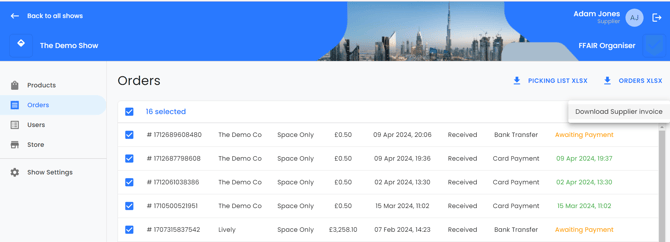
Bulk Invoice Download
- Click on the required show.
- Click on the 'Orders' page.
- Find the desired orders
- Check the box to the left of each order (or check the box at the top beside 'Order Number' to select all order.
- Click the 3 dots icon which has appeared to the right of the screen
- Click 'Download Supplier Invoice'
- The invoices for all selected orders will download in a zip file
Supplier Invoice Breakdown
The supplier invoice contains confidential financial information and should not be shared with the customer/exhibitor.
Each supplier invoice will include:
- Order payment status
- Invoice number
- Sold by (supplier)
- Billing address (exhibitor)
- Delivery details (venue information)
- Order information (order date, order number, invoice number)
- Invoice details broken down by product :
- Product name (the name provided by you, the supplier)
- Unit price (your product price excluding fees & Sales Tax)
- Fees per unit (platform & organiser fee amount)
- Quantity (quantity purchased)
- VAT (the amount of Sales Tax charged on the product - Sales Tax is calculated from Shop Price i.e Unit Price + Fees)
- Total Price (unit price+ fees + Sales Tax)
- Subtotal (unit price+ fees + Sales Tax)
- Less Fees (total fee amount incl Sales Tax paid on fees)
- Total (total paid to you, including Sales Tax but excluding fees)
Exhibitor Invoice Explained (Non-itemised)
The exhibitor invoice includes the following details:
- Sold by (supplier name, address, Sales Tax number)
- Billing Address (exhibitor)
- Delivery Address (venue)
- For each product they will see:
- Product name
- Unit Price (exc Sales Tax)
- Quantity
- Total price (exc Sales Tax)
The following details are included on the exhibitor invoice but are not itemised (i.e they see the total paid, not broken down by product)
- Payment Fee
- Subtotal (total price + payment fee)
- Sales Tax (total owed)
- Total (total product price + payment fee +Sales Tax)
When an exhibitor places an order which contains products from multiple suppliers, this will split invoices per supplier.
Downloading an orders overview
- From your Orders page within a show, click the 'Orders XLSX' button (top right of the page)
- This downloads a full product list covering all your orders, giving you a complete rundown of every order