
Overview
Previously, chasing unpaid bank transfer invoices was a manual task. Now, FFAIR automatically reminds Exhibitors with outstanding bank transfer orders, on a schedule you control.
This article covers:
- Setting up your payment reminder email template
- Configuring your reminder schedule
- How reminders behave (due dates, multi-supplier orders, stopping conditions)
Where to find it
-
Go to Supplier Console → Settings → Notification settings → Payment Reminders.
This section is only visible to Supplier Admins. The row shows your current active schedule at a glance — for example:
System default (Mondays at 06:00 UTC)orScheduled; Weekly (Mon, Fri at 19:00)
-
Click the pencil icon to edit.
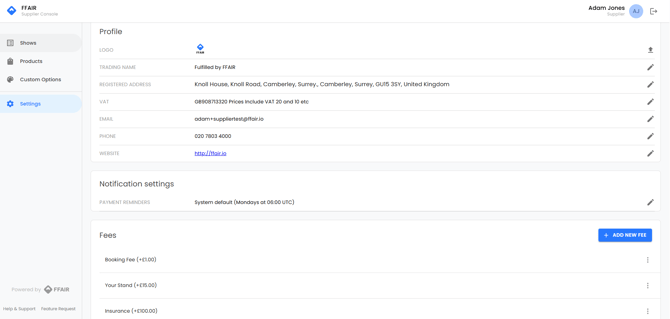
Any changes you make apply across all active and future Shows your Supplier company is part of - this is a company-level setting, not a per-show one.
Step 1: Email Template
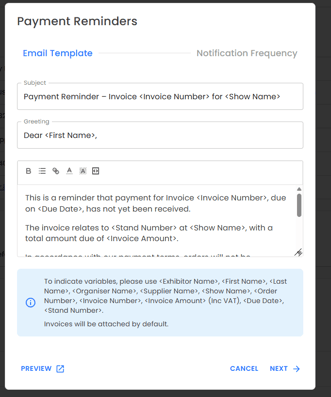
The Payment Reminders modal opens on the Email Template step.
You can edit:
- Subject — default:
Payment Reminder – Invoice <Invoice Number> for <Show Name> - Greeting — default:
Dear <First Name>, - Body — full rich text editing (bold, lists, links)
Available variables you can drop into the subject or body: <Exhibitor Name>, <First Name>, <Last Name>, <Organiser Name>, <Supplier Name>, <Show Name>, <Order Number>, <Invoice Number>, <Invoice Amount> (incl. VAT), <Due Date>, <Stand Number>
These are placeholders — they'll only resolve to real data when the email actually sends. In Preview, you'll see the literal tags rather than real values
.
A few things worth knowing:
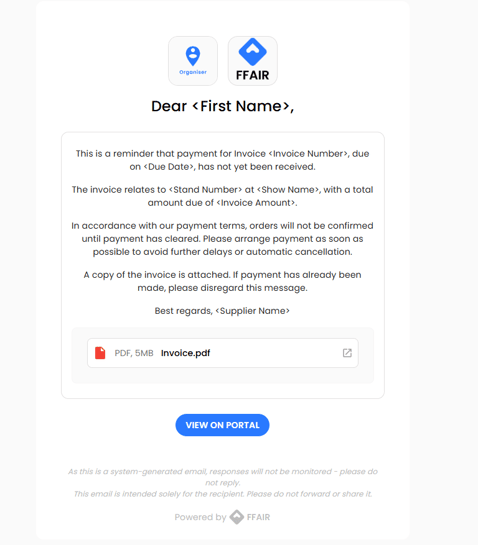
- The invoice is linked, not attached as a file, in the actual email — the rendered preview shows an invoice block with a view/download control and a View on portal button.
- The email automatically includes your Show logo, a "Powered by FFAIR" footer, and standard formatting — you're only editing the subject/greeting/body copy.
Click Preview any time to see how your unsaved edits will render. Click Next to move to the scheduling step.
Step 2: Notification Frequency
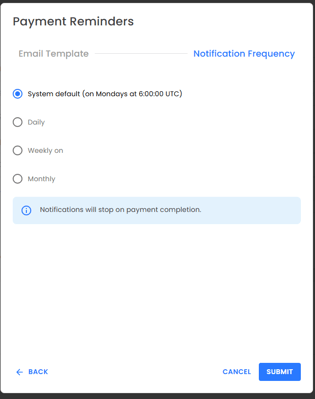
This is where you set when reminders go out.
Options:
| Frequency | What you configure |
|---|---|
| System default | Mondays at 06:00 UTC — no further setup needed |
| Daily | A send time |
| Weekly on | One or more days of the week, plus a send time |
| Monthly | A day of the month (e.g. the 1st), plus a send time |
About the time picker:
- Uses 24-hour format, in 1-hour steps
- You enter and see the time in your local timezone
- A label under the field shows the equivalent UTC time — this is what's actually stored and used for sending, so double-check it if your local time zone shifts with daylight saving
Click Back to return to the Email Template step, or Submit to save. Once saved, the Payment Reminders row in Settings updates to reflect your new schedule.
Reminders automatically stop once the order is no longer awaiting payment — you don't need to cancel anything manually.
How due dates are calculated
The <Due Date> variable is calculated automatically based on the Order Date and the Show's start date:
- Show is more than 2 months after the Order Date → due date = Order Date + 14 days
- Show is 2 months or less after the Order Date → due date = Order Date (payment due immediately)
Edge case: If an order is placed more than 2 months before the show (specifically 2 months + 1–13 days before), the 14-day terms still apply — even if that pushes the due date inside the 2-month window. The system does not "re-check" and shorten it to immediate payment in that case.
Orders with multiple Suppliers
If an Exhibitor's order includes products from more than one Supplier, and at least one of those Suppliers has set a manual schedule, reminders are sent separately per invoice. This means each Supplier's reminders follow their own configured schedule independently — one Supplier's custom schedule won't affect another's.