---
title: Requesting and Approving Refunds for Exhibitor Orders
description: Refunding exhibitor orders
---
[Skip to content](https://support.ffair.io/supplier-knowledge-base/requesting-and-approving-refunds-for-exhibitor-orders-#main-content)
[](https://www.ffair.io)
Open main navigation
Close main navigation
How can we help you?
- There are no suggestions because the search field is empty.
1. [FFAIR Supplier Knowledge Base](https://support.ffair.io/supplier-knowledge-base?hsLang=en-gb)
2. [Managing Shop Orders](https://support.ffair.io/supplier-knowledge-base/managing-shop-orders?hsLang=en-gb)
# Requesting and Approving Refunds for Exhibitor Orders
## FFAIR supports two refund flows depending on your permissions: 1. Request a refund (if you are not a Refund Approver) 2. Approve or process a refund (if you are a Refund Approver) This article walks through both processes step by step.
#### Who can do what
- **Supplier (no approval permission)**
Can **request** a refund. A designated Refund Approver must approve it.
- **Supplier with Refund Approval permission**
Can **approve, reject, or process refunds instantly** without approval.
To request a supplier user be granted refund approval permission, please contact support@ffair.io
---
#### When the Refund button appears
- The **Refund** button appears in the **Order drawer**
- Only shown for **Paid Orders**
- Only shown if **at least one Supplier user** has Refund Approval permission
---
### Flow 1: Requesting a Refund (Non-Refund Approver)
Use this flow if you **do not** have Refund Approval permission.
---
#### Step 1: Open the Refund modal
1. Log in to your Supplier Portal.
2. Access the related Show.
3. Open the **Orders** page
4. Open the relevant **Order drawer**
5. Click **Refund**
**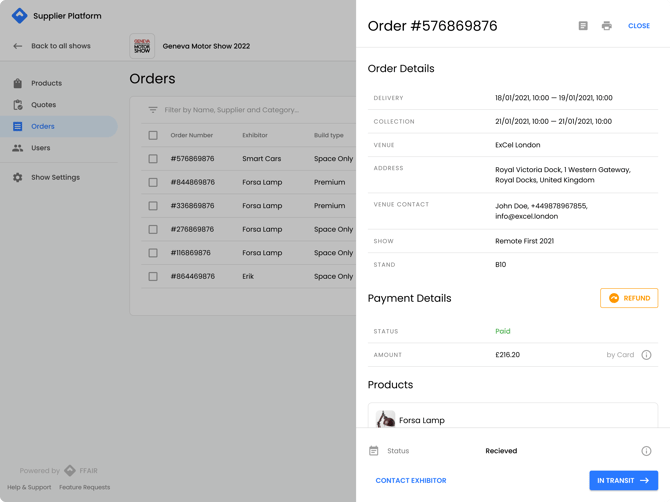**
You’ll see:
- Exhibitor company name
- Address, postcode, VAT
- Contact details
- List of all ordered products
---
#### Step 2: Select what to refund
- Select **individual products**, or
- Click **Refund Entire Order** to select everything
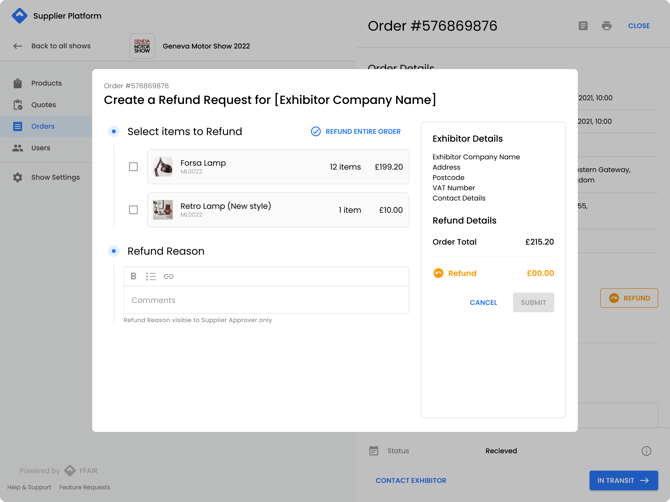
If all items are selected:
- The Order will be **Cancelled** after the refund
- Stock will only be increased **once** (to avoid duplication)
---
#### Step 3: Adjust quantities and amounts
- Refunded amount is calculated automatically
- You can reduce product quantities
- Minimum: 1
- Maximum: purchased quantity
- Refunded amount recalculates when quantities change
- Product fees are shown and included
---
#### Step 4: Discounts and calculations
If a **discount code** was applied:
- The discount is **distributed proportionally** across products
- This applies to:
- Percentage discounts
- Fixed amount discounts
- Discounts applied to specific product categories
The distributed discount is reflected clearly in the refund request view.
---
#### Step 5: Add a reason (optional)
- Refund reason field is optional. This is only visible to the Supplier Approver, not the exhibitor.
---
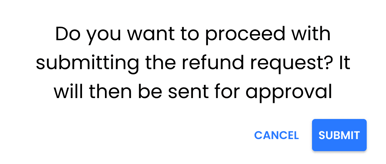
#### Step 6: Submit the refund request
1. Click **Submit**
2. Confirm when prompted:
> **
---
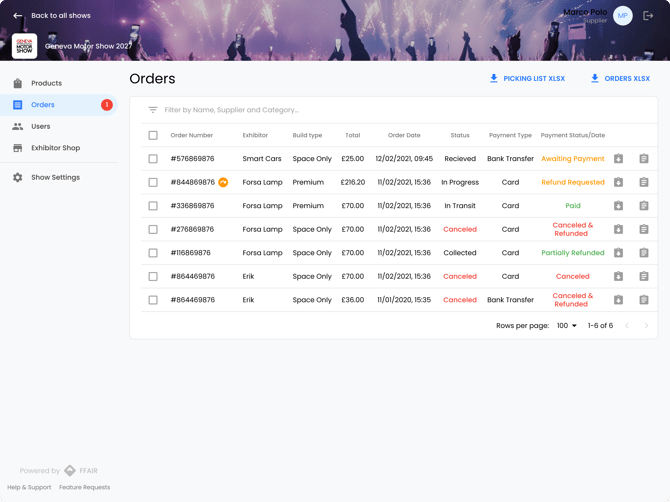
#### What happens next
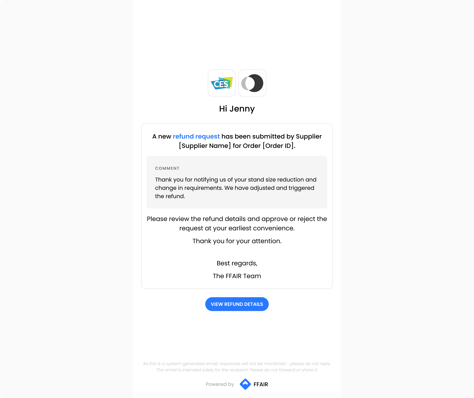
- The Refund Approver receives an **email notification**
- The Order status updates to **Refund Requested**
- You can view the refund details in **read-only mode** while it’s pending
---
### Flow 2: Reviewing and Approving Refunds (Refund Approver)
Use this flow if you **have Refund Approval permission**.
---
#### Receiving a refund request
When a refund is submitted:
- You’ll receive an email notification
- Clicking **View refund details** opens:
- Orders page
- Order drawer with refund details
---
#### Reviewing the refund
You can see:
- Exhibitor company details
- All products pending refund
- Quantities and prices
- Product fees (if any)
- Refund reason
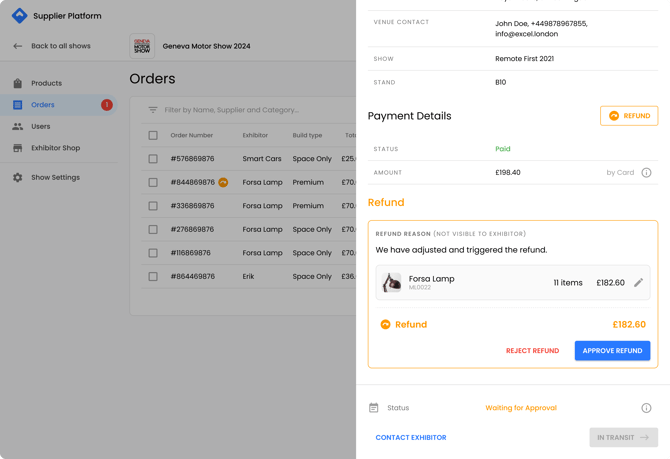
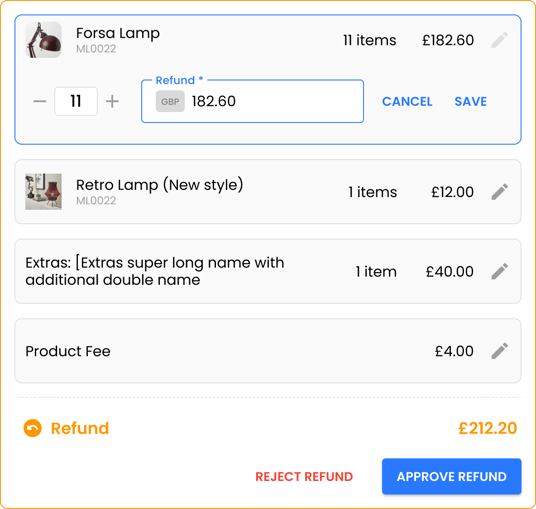
You can also:
- Reduce quantities
- Reduce refund amounts (cannot exceed purchased amount)
- Adjust product fees
Total refund amount updates automatically.
---
#### Approving a refund
1. Click **Approve**
2. Review the confirmation modal:
- Total amount
- Optional approval reason
3. Click **Refund** to confirm
### What happens when approved
- Refund is processed via Stripe
- Money is transferred back to the Exhibitor
- Order status updates to:
- **Partially Refunded** – if not all items were refunded
- **Refunded and Cancelled** – if the full order was refunded
- **Refund Processing** – for bank transfers while Stripe processes
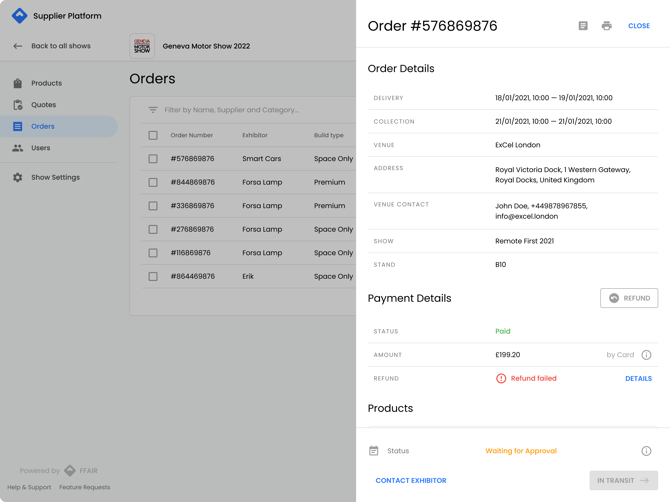
If Stripe fails:
- Order status becomes **Refund Failed**
- You can retry the refund at any time
---
#### Rejecting a refund
1. Click **Reject**
2. Add a **required reason**
3. Confirm rejection
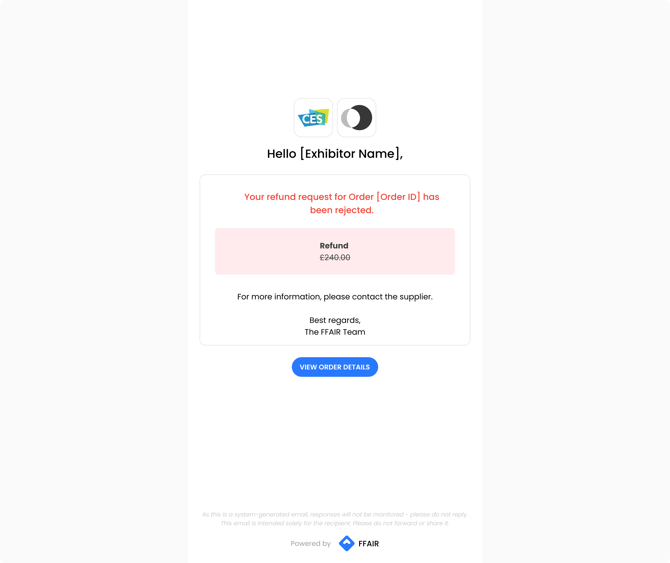
### Notifications sent
- Exhibitor receives a rejection email
- Supplier who requested the refund also receives an email
- Refund can be requested again if needed
---
### Instant Refunds (Refund Approvers only)
If you are a **Refund Approver**:
- You can refund immediately
- No approval step required
- You can adjust quantities and amounts before confirming
After confirmation:
- **Only the Exhibitor** receives an email notification
---
### Emails and documents
### Refund Receipt PDF
- Sent to the Exhibitor
- Filename uses the **Invoice number**
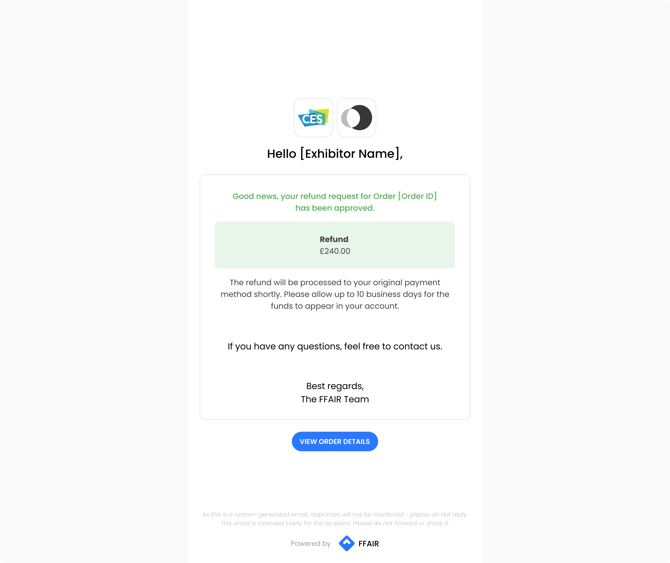
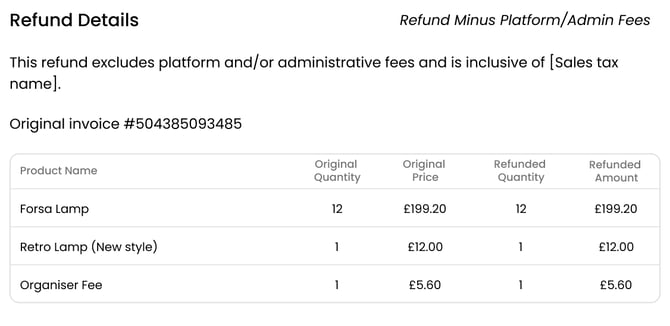
**Full refund message:**
> 
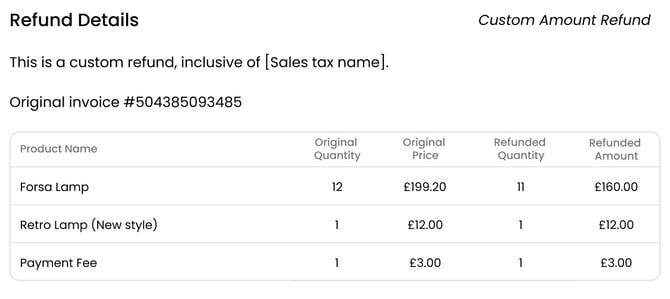
**Partial or custom refund message:**
> 
---
### Viewing refunded orders
- **Suppliers**, **Exhibitors**, and **Organisers** can all view refunded orders
- If multiple Suppliers refunded the same Order:
- Each Supplier appears in a separate section
---
### Important rules and edge cases
- You cannot submit a new refund request while one is **pending**
- If partially refunded, you can refund the remaining amount later
- If the Refund Approver permission is removed:
- Pending requests remain stored
- They reappear when permission is restored
---
### Stock management behaviour
When a refund is completed:
- Global quantity increases if used
- Override quantities are increased if applicable
- CPO quantities are increased if used
Stock is **not updated** if:
- Product was removed from the show
- Product was removed globally
- CPO configuration was removed
- Product is a **Custom Product**
### Error messages you may see
- **Below Stripe minimum**
> Refund cannot be processed because the amount is below Stripe’s minimum transfer limit.
- **Insufficient Stripe funds**
> Your Stripe account has insufficient funds to complete this transaction. Please top up your balance and try again.
- [Supplier Onboarding Guide](https://support.ffair.io/supplier-knowledge-base/supplier-onboarding-guide?hsLang=en-gb)
- [Account Set Up](https://support.ffair.io/supplier-knowledge-base/account-set-up?hsLang=en-gb)
- [Managing your Products](https://support.ffair.io/supplier-knowledge-base/managing-your-products?hsLang=en-gb)
- [Managing your Shop](https://support.ffair.io/supplier-knowledge-base/managing-your-shop?hsLang=en-gb)
- [Managing Shop Orders](https://support.ffair.io/supplier-knowledge-base/managing-shop-orders?hsLang=en-gb)
- [Accounting](https://support.ffair.io/supplier-knowledge-base/accounting?hsLang=en-gb)
- [Integrations](https://support.ffair.io/supplier-knowledge-base/integrations?hsLang=en-gb)
- [FAQs](https://support.ffair.io/supplier-knowledge-base/faqs?hsLang=en-gb)
[mailto:email@email.com](mailto:email@email.com)
Copyright © 2025, FFAIR Ltd